Raspberry Pi Zero Slideshow

Gave my Mom one of those Electronic LCD Picture Frames, that I loaded up with some family photos. She liked it and even my sisters enjoyed looking at the old photos. I used a flash card with a few hundred photos but the frame itself is small and the LCD screen isn’t very good. I wondered about making something simple that plugs into the TV that Mom (or anyone) could use. I wanted it as simple as possible, ideally just a power plug and an HDMI output.

I put together a little Raspberry Pi Zero gadget that does a pretty good job. I’m using the Linux utility feh, which does exactly what I want it to do. From the command line you can randomly display all the photos in a directory tree in full screen mode. The command I use is:

/usr/bin/feh --slideshow-delay 7.0 --auto-zoom --borderless --fullscreen --recursive --randomize --auto-rotate --hide-pointer /usr/pi/Pictures/

The photos are all in the /usr/pi/Pictures directory and the delay between pictures is seven seconds. I put this into a file called slideshow.sh in the pi user home directory (/home/pi). This is the default user for Raspberry Pi OS. To get this script to execute on start-up a file called /etc/xdg/autostart/display.desktop is created with the following content:

[Desktop Entry]
Name=Slideshow
Exec=/home/pi/slideshow.sh

This file will run the slideshow script when the Raspberry Pi boots up. One last bit. You don’t want anything to interfere with the slideshow, so you should turn off the screensaver. This is done in the raspi-config configuration tool under the Preferences menu. Select the Screen Blanking option and disable it. Lastly, you don’t want an upgrade request to interrupt things either, so we can turn that off, too. The following commands should disable requests for updates.

sudo systemctl mask apt-daily-upgrade
sudo systemctl mask apt-daily
sudo systemctl disable apt-daily-upgrade.timer
sudo systemctl disable apt-daily.timer

Looks like it works. Bought a 256GB flash card and will load it up with a few thousand old photos I have in the archive. Will be visiting Mom in a few weeks. Hope she likes it.

Raspberry Pi Sprinkler Controller Finished

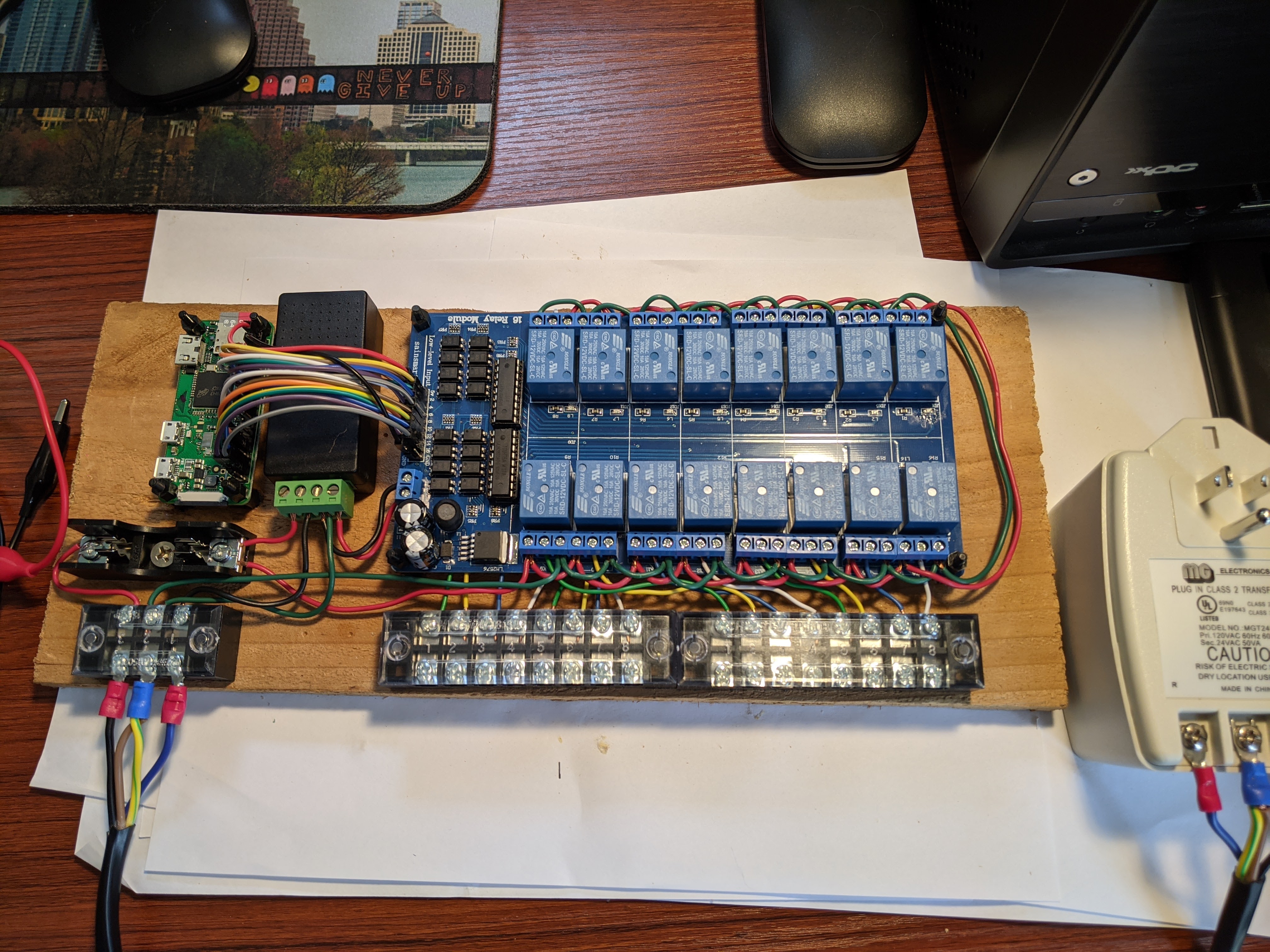
I believe this is the “1.0” version of the Raspberry Pi 4 lawn sprinkler controller. I decided to put a fuse in after I burned up my first power supply with a badly designed ground circuit. Of course this can be used as a general purpose controller even capable of switching higher voltages, with a few modifications. Will be running it live on my sprinklers in the next few days. Will post a link when I put the code and parts list out on GitHub.

Logging and Plotting

Been having internet problems lately. I would usually wait until things got bad and then do network traces with MTR and point out where the problem was. Would also text neighbors to see if they were also down (they always were) just to verify that it wasn’t just my own home wiring or equipment.

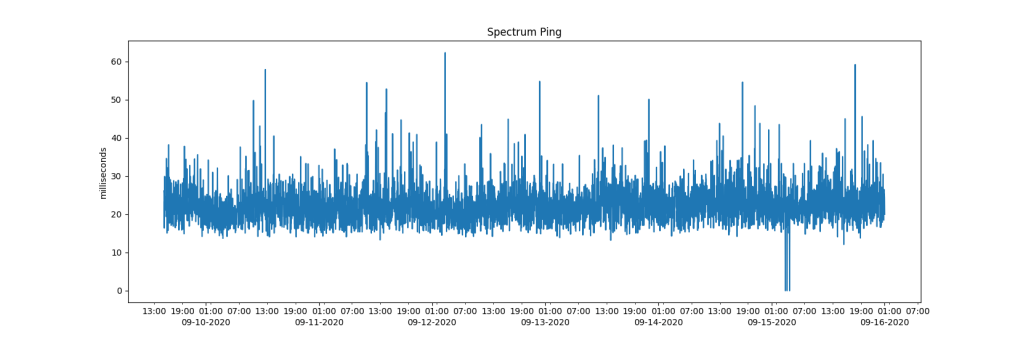
Not getting much traction with Spectrum, I started logging network data to see exactly when and how bad the latency problems were. I even used a dedicated, wired, Raspberry Pi Zero to make sure the numbers weren’t wobbly due to wifi or other software running on my host.

The end result is two smallish but powerful logging and plotting programs I have shared on GitHub. The Logger is actually similar to an industrial strength tool I wrote for a large bank that was deployed on thousands of production servers. Enjoy.

Raspberry Pi Zero Network Monitor

We have been having trouble with our home internet for years. Lately it just drops off every hour or two for a few minutes at a time. I wrote a little script to ping a remote site every minute and log the results. The plan was I could graph the results and “share” them with my internet provider.

I was logging from my desktop Raspberry Pi 4 running Ubuntu and realized it would be better to used a dedicated, wired machine, lest my internet provider protest that the problem is with my router, etc.

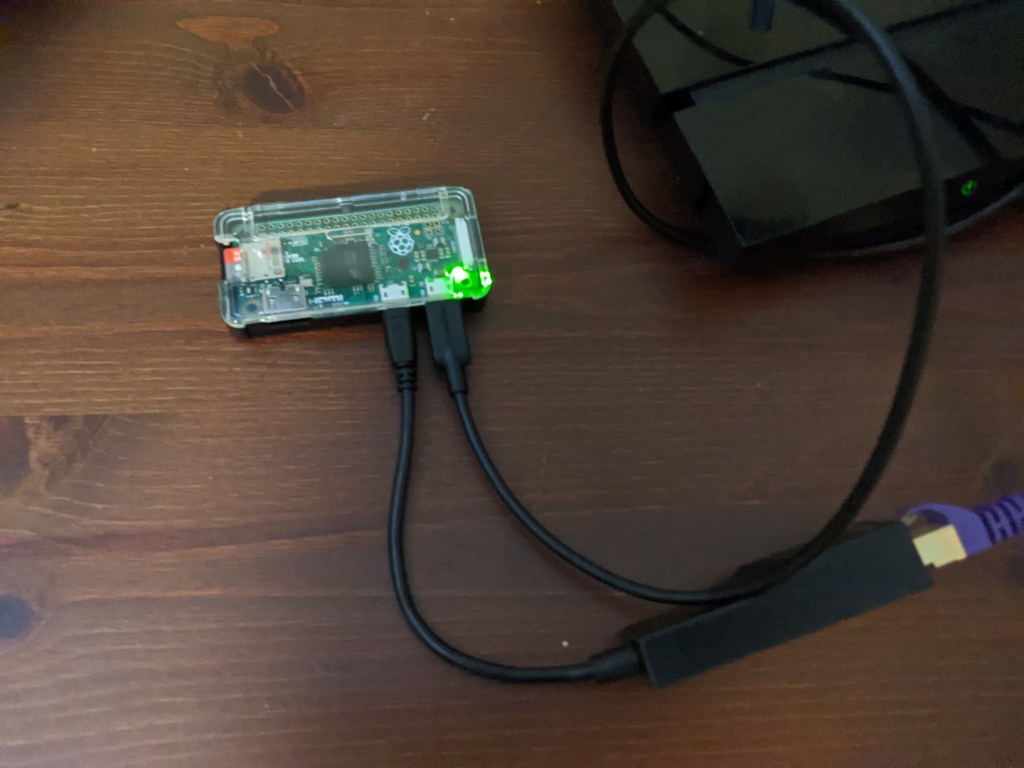
I had this $5 Raspberry Pi Zero that I bought not realizing I actually wanted a Raspberry Pi Zero W with built in WiFi. I figured I could use this as a dedicated machine hooked directly to my router. I bought a USB to Ethernet adapter and a USB cable for power, that I just plugged into the USB slot in my router.

Amazing how fast it came together. Going to clean up the software a bit and post it to github. Will post when it is out there.

Sprinkler Project Power Supply

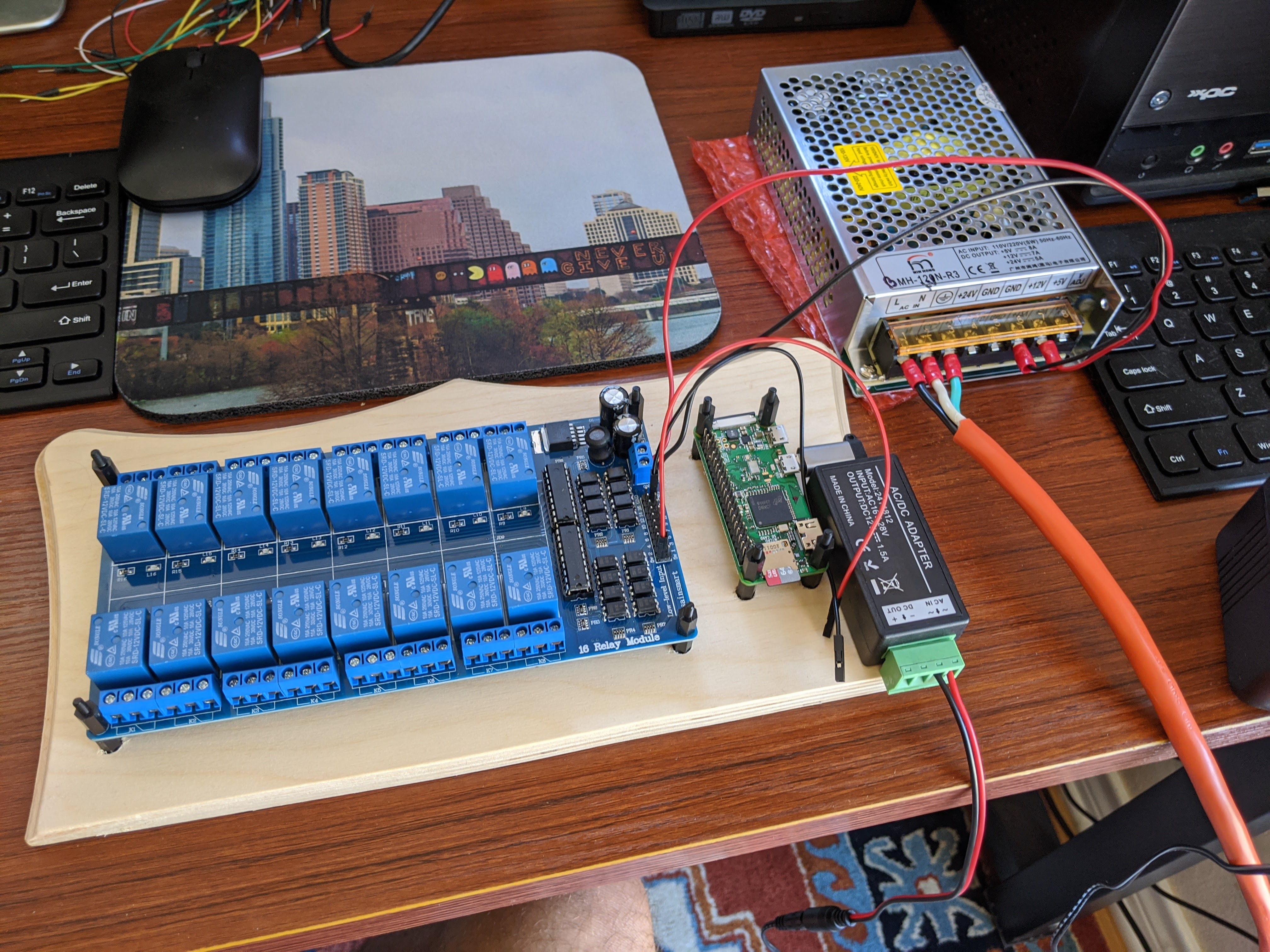
So I bought a 24V / 12V power supply (the silver box) to supply the 24V for the sprinkler valves and 12V for the relay board.  The relay board generates 5V for the Raspberry Pi Zero W board.  I learned last week that sprinkler valves use 24V AC, not DC.  You can get away with DC but it will take more power and is just not right.  This is ok, since I was never crazy about the big power supply.

So I bought this wall wart power supply to get the 24VAC and this neat little converter to get 12VDC from the 24VAC.  Hooked it all up and it works.  Oh, originally bought a Rasperry Pi Zero without the header soldered in.  Figured I could do it myself.  Didn’t have the right equipment and / or the skills and really botched the soldering job.  Bought another one with the header soldered in.  Good thing those Pi boards are so cheap.

img_20200820_132516

Raspberry Pi Zero Sprinkler Controller

Wanted to upgrade my sprinkler controller but thought I would just buy one of the new internet enabled units on the market. A bit pricey, but probably worth it.  Thought about using the Raspberry Pi to make one.  Saw a few projects on line doing this but none that suited my needs. And the good thing about building your own is you can make it exactly the way you want.

The Pi 4 seems like overkill, though it is relatively cheap.  Then I ran across the Raspberry Pi Zero, a tiny version of the Pi with an older single core CPU and 512 MB of RAM.  Only $5, $10 with WiFi.  I was intrigued.

Bought some other bits I figured I would need, including a power supply with 24V for the sprinkler valves and a neat little relay module.  That is really all it needs.  Played around with the relays a bit.  Got the Pi Zero in and booted Linux.  Wrote a little python to talk to the GPIOs.  Looks like a little integration work and I’m done.  Could really be a controller for anything.